![Orbico_logo_png.png]](https://knowledgebase.orbico.com/hs-fs/hubfs/Public%20Media/Orbico_logo_png.png?height=40&name=Orbico_logo_png.png)
Getting started:
In the Main Menu navigate to AUTOMATION/WORKFLOWS:
In every basic setup of the workflow, first you must determine what are the triggers that will start the workflow and determine the size of an audience (or a single Contact).
1. Set the type of "Trigger":
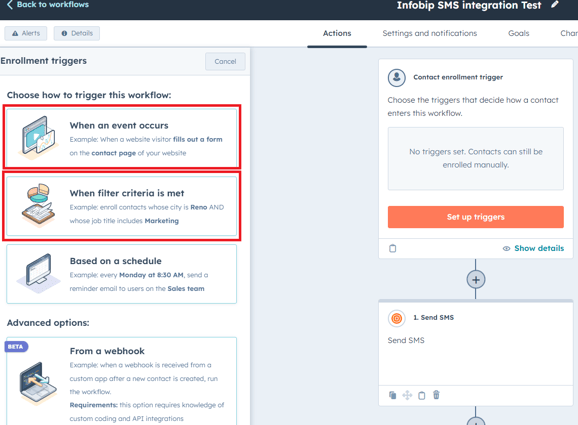
There are 2 main type of triggers that are most common:
1. When an event occurs : it's based on a certain event (such as the ones on the website) that can range from when a Contact clicks on a page, clicks the CTA button, opens an email, email bounces (so then you send an SMS) etc. When you click on it, you will be presented with a wide range of possibilities to choose from..
2. When filter criteria is met: based on a number of properties (attributes) that are related to a certain contact (or a Contact's relation with a Company or a Deal). Here you can also choose criteria "List membership" (and choosing the right list) , if you have already set up a list of potential Contacts, either Static or Active list (note that "Lists" are NOT mandatory and the criteria that you set can work just fine).
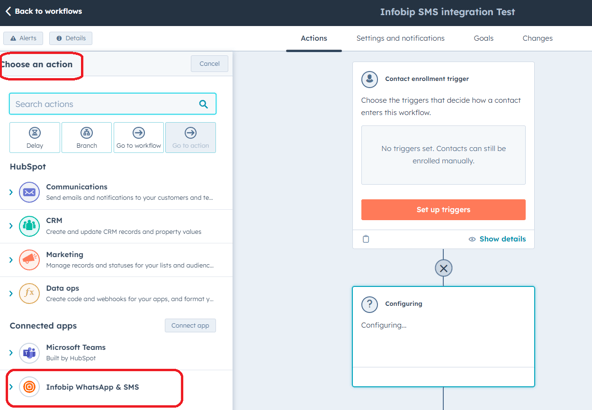
2. Choose an "Action" of Infobip SMS:
Find the Action called "Infobip Whatsapp & SMS" and select:
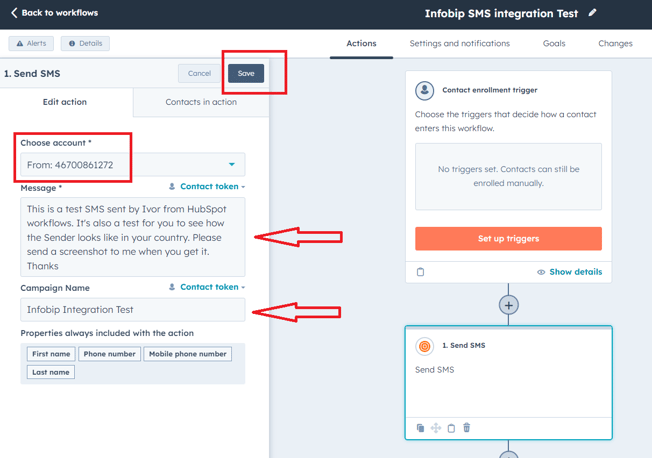
3. Set the SMS
1. Choose an account: The current account number that we are using is "46700861272", BUT this is only a generic sender number and it's not displayed in any of the Orbico markets during testing. We managed to register the name "Orbico" as the sender, but it really depends on the market and telephone operator.
2. Type the message in
3. Type a campaign name
4. Save
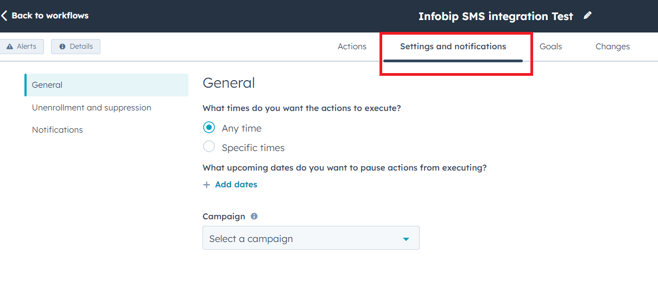
4. Make sure to set up workflow "Settings and notifications"
5. Check which "Contact" enrolled in the workflow
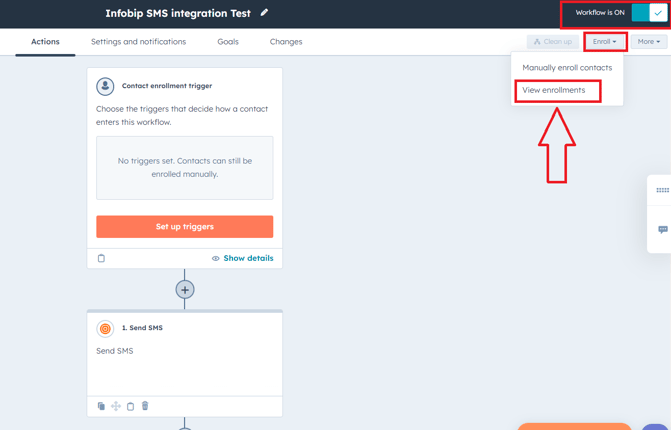
If you want to check which Contact enrolled in the workflow and was it successful, click on "Enroll/View enrollments".
Make sure that your "Workflow is ON"