![Orbico_logo_png.png]](https://knowledgebase.orbico.com/hs-fs/hubfs/Public%20Media/Orbico_logo_png.png?height=40&name=Orbico_logo_png.png)
First Steps
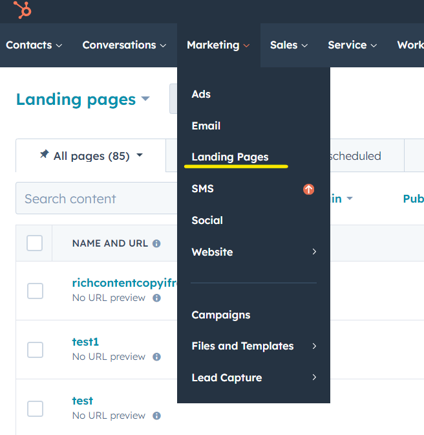
To set up each rich content product page, follow these steps:
1. Make it as a landing page
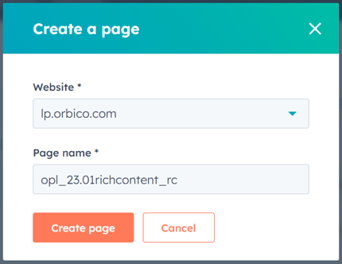
2. Choose website URL: lp.orbico.com.
3. Name the page following the example provided.: opco_main name content_rc.
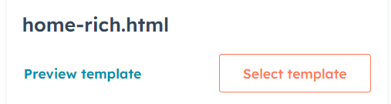
4. Choose the Rich Content Platform theme Rich content Platform and select the home-rich.html template.
Page designer
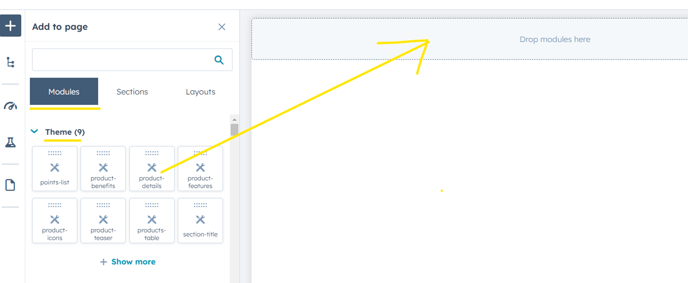
Creating your page is a eazy with our drag and drop modules. These modules are conveniently organized into different groups, including: theme, text, commerce, ... others.
Specifically designed for our theme, the modules in the theme group are highly recommended for use. Using modules ensures that the content will be displayed correctly on the portal, and it also provides the option to improve them by us.
If you find that these modules don't meet your specific requirements, we can also create customized modules just for you.
Picture management
For improved picture management during your daily tasks, it is recommended to adhere to organizing your pictures into specific folders. This practice will greatly simplify the process and make it easier to locate and organize your pictures.
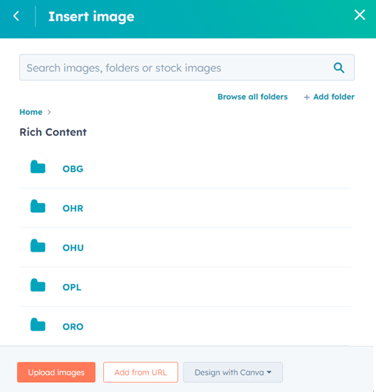
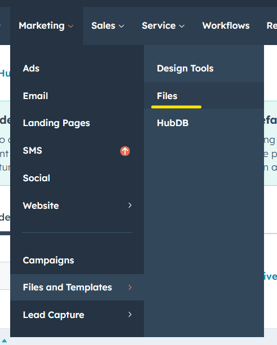
If you happen to mistakenly upload a picture to the wrong location, don't worry! You can easily go to the sections files and move the pictures between folders. This allows for efficient picture management and ensures that everything is organized correctly.
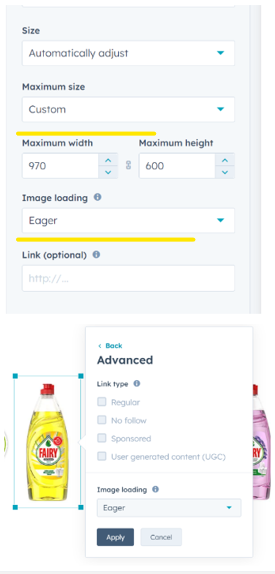
To ensure proper display of pictures on the portal, it is crucial to adjust these two settings. Maximum size: Custom
Image loading: Egear
By default, the image loading setting for each module created for the Rich Content Platform theme is set to egear.
Theme modules
Below in the article, I will present each module from the theme group one by one. By using these modules, users will be able to create a professional rich content product page, which could be used on B2B platform.
section-title
This module should be used at the top of the product description as the product name. Additionally, it can also serve as a separator between different sections of the description.

point list
This module is a valuable tool for highlighting the key features of a product. It allows you to showcase the unique selling points and advantages of the product in a concise and visually appealing manner. By using this module, you can create bullet points or a list format to effectively communicate the product's features to your audience. This will help potential customers understand the benefits and capabilities of the product, making it easier for them to make an informed purchasing decision. Whether you are showcasing technical specifications, product dimensions, or specific functionalities, this module provides a clear and organized way to present the information.
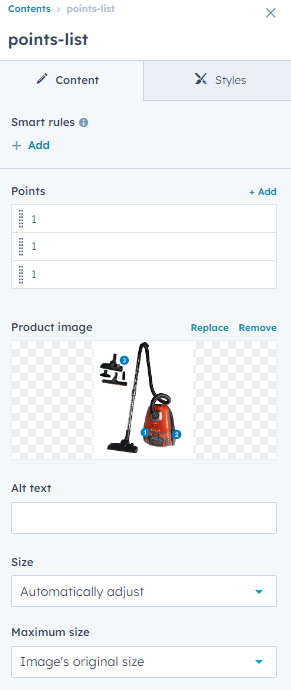
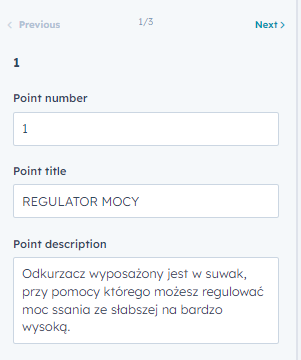
product-benefits
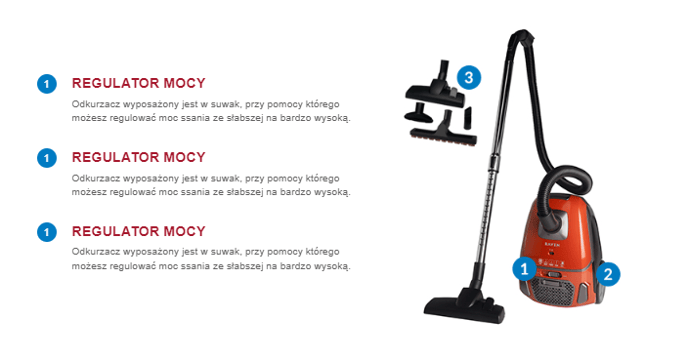
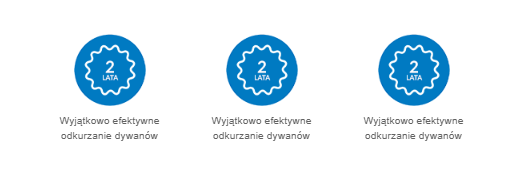
These modules create sections with stamps, enhancing visual appeal and conveying important information. They highlight specific product benefits and make it easier for customers to understand why they should choose the product. Icons represent different benefits, improving design and effectively communicating the value proposition to potential customers. They create visually engaging sections that concisely showcase the product's benefits.
product-detalis
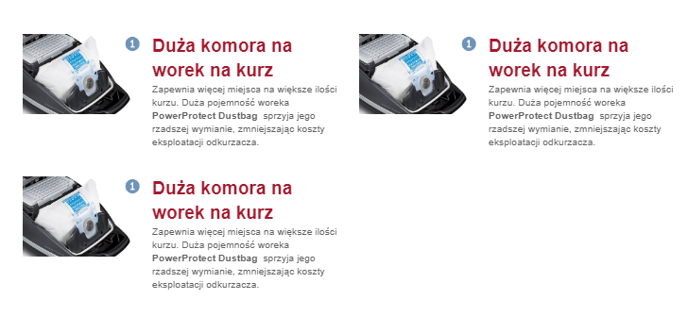
This module provides a visual representation of the product details, including a picture and a comprehensive description. It assists customers in comprehending the specifications, functionalities, and unique attributes of the product, ultimately facilitating their ability to make well-informed purchasing decisions.
 product-features
This module effectively showcases the product's functionality and unique selling points, enabling users to easily grasp and appreciate its features. By incorporating both visually appealing and descriptive elements, it enhances the overall presentation and ensures users gain a comprehensive understanding of the product's benefits. It also helps potential customers visualize how the product can fulfill their specific needs and elevate their experiences.
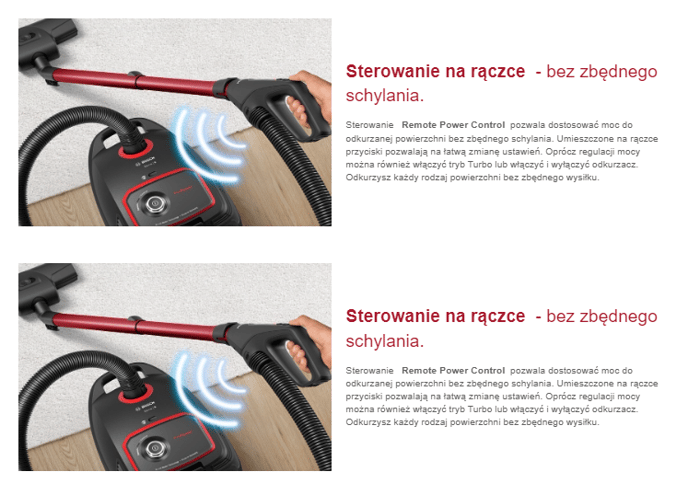
product-icons
You have the flexibility to display up to 4 icons on a single line, allowing you to effortlessly highlight the features of your product in a streamlined manner.
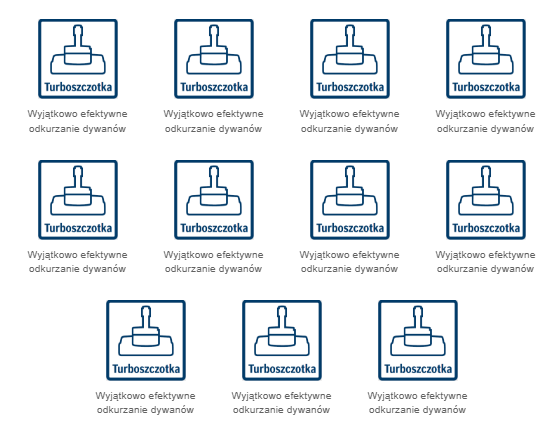 product-teaser
Product-teaser
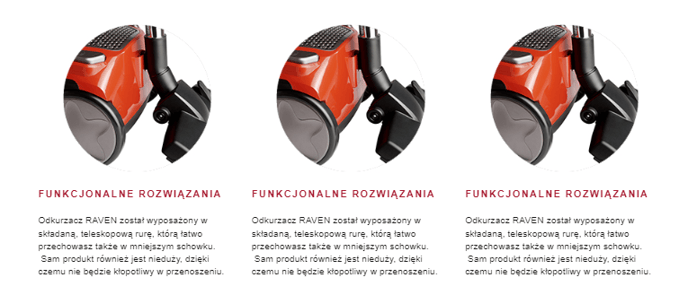 products-table
This module can assist in creating tables for comparing products, which is particularly useful for customers who want to compare multiple options. It enables them to easily assess important features, specifications, and pricing information, allowing customers to quickly identify key differences and make well-informed decisions. By presenting relevant information in a clear and organized manner, this module enhances the customer's ability to make comparisons effectively.
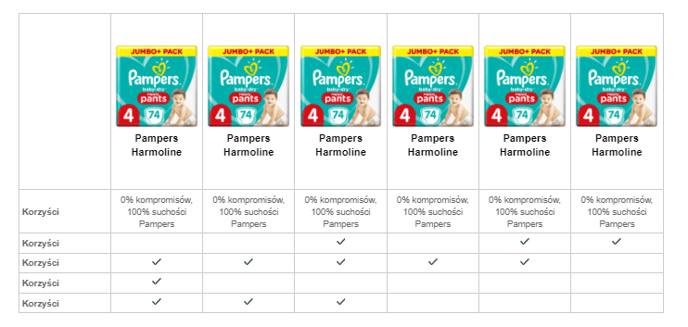
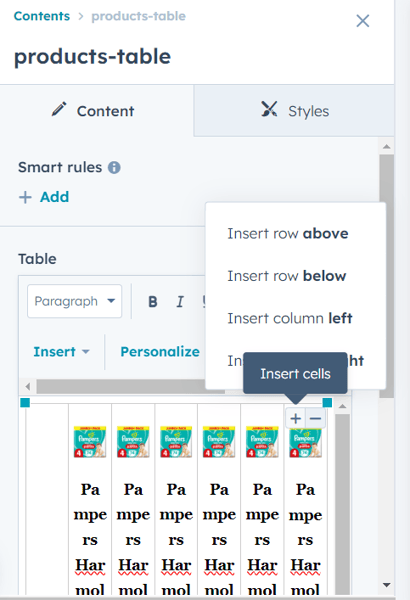
Users can easily add rows or columns without having to edit HTML code. To edit the product table, simply click on the table in the content settings box
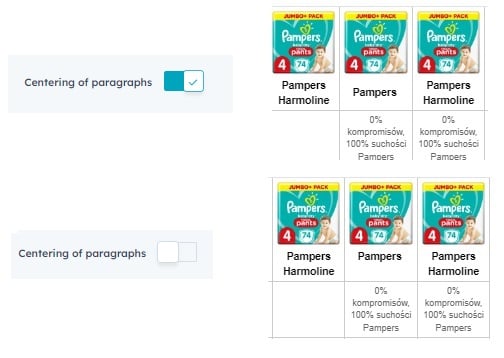
The table is versatile and functions well for 2 to 10 products. You can check how it appears for each number of products by following the link below.Table is fexible and works fine for 2 to 10 products. Below link you can chceck how it looks like for each number of products.
https://lp.orbico.com/table_examples
Sections settings
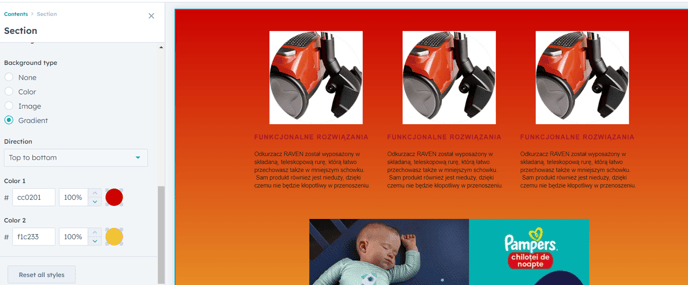
If users wish to make changes to each section, they have the ability to do so. By default, each section is set with a 50px margin. However, if users want to remove any empty spaces, they can easily achieve this by adding -50px in the margin section.
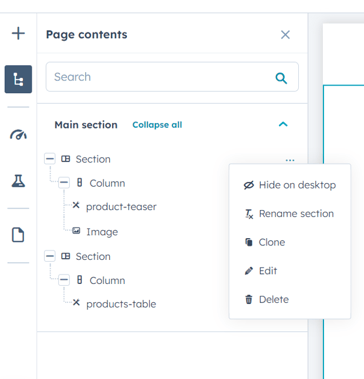
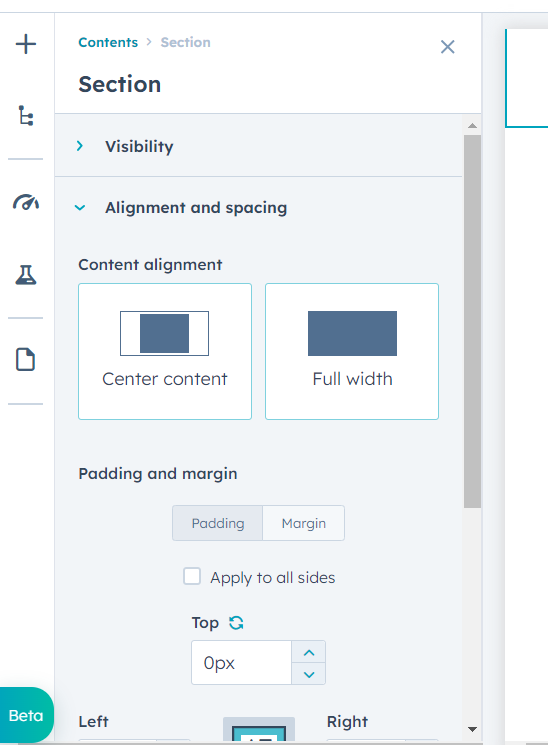
Users have the option to enhance their content by adding a background to the entire section. This powerful feature enables users to create visually appealing and attention-grabbing content that stands out.
Publishing site
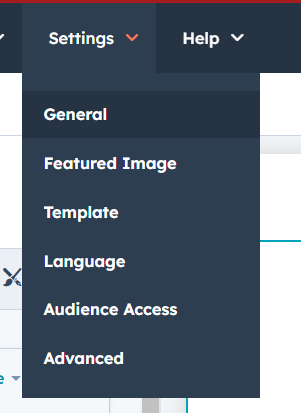
To publish site you need to go to settings and choose option of General.
Please ensure that the site is set to public, as it will not be available on the B2B portal in any other setting.
You can use a different URL than the page name. After making this adjustment, you can publish your site by clicking the 'Publish' button in the top right corner.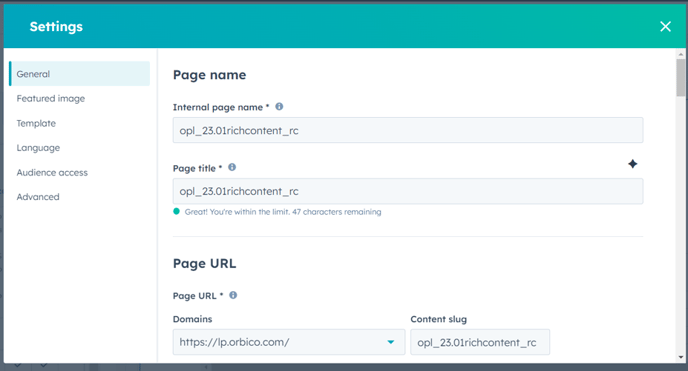
Control Panel Settings
To ensure that your rich content appears visually appealing on the platform without visible scrollbars, remember to adjust the hubspotIframeOffset to 250.
- Go to CP
- Find Box PRODUCT PAGE DESCRIPTION and click edit
- In configuration section add property hubspotIframeOffset 250
